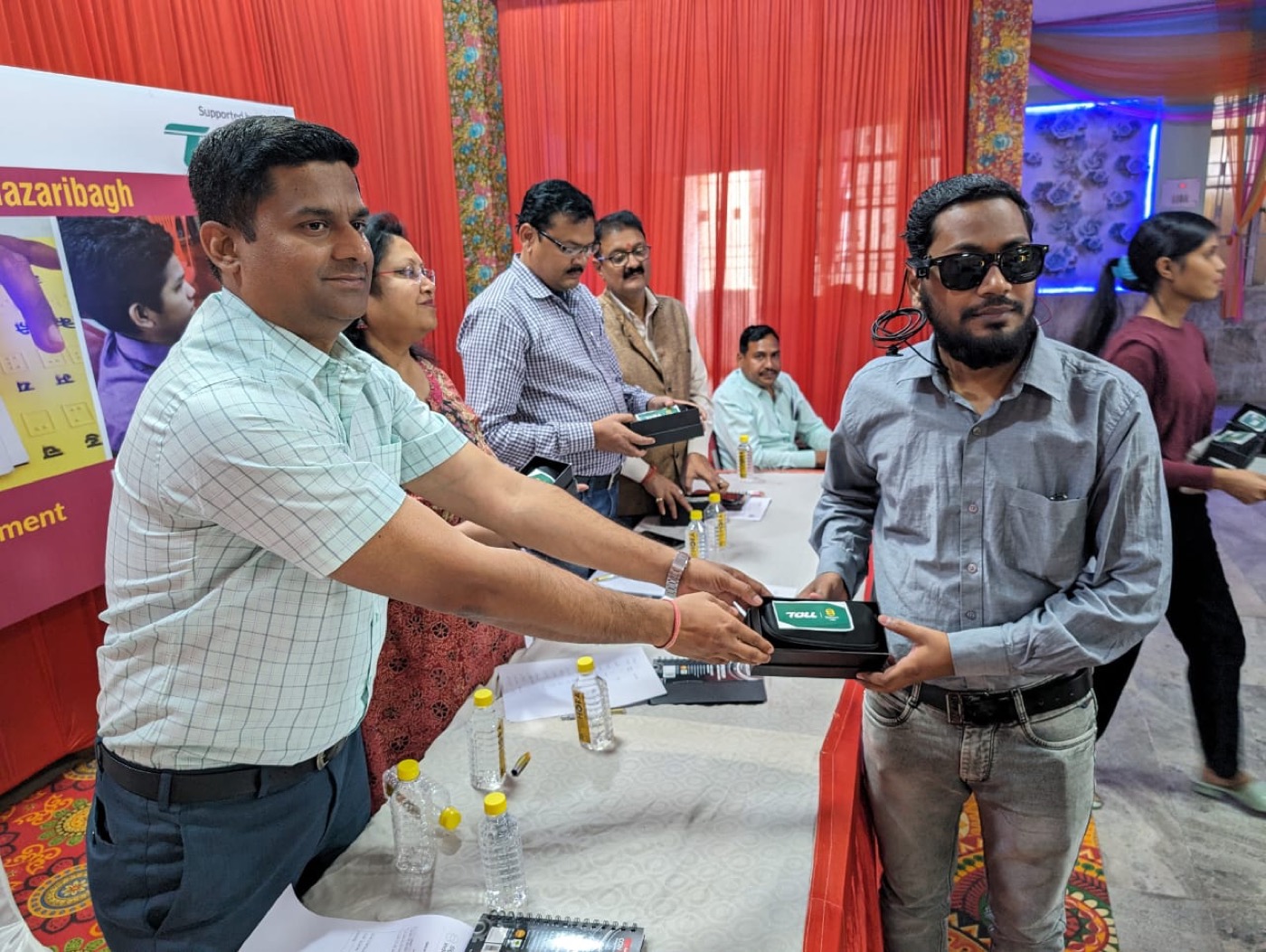
How to set up SMARTON for a newly diagnosed visually impaired individual
A step-by-step guide for families and caregivers: from buying the right SMARTON Kit to the first call with our VI support team — designed for first-time users who need confidence within a week.
SMARTON Team
Author
When someone in your family is newly diagnosed with vision loss, you don't have time to learn a new software stack. You need a tool that works on Day 1 — and a real person at the other end of the phone when something doesn't make sense. This guide walks you through setting up the SMARTON app and (optionally) the VI Inclusive Package for a newly diagnosed person, in plain language, in the right order.
Before you start: decide which SMARTON setup fits
SMARTON has two ways to start. Pick one based on who the user is and how they prefer to interact with technology:
- App-only (smartphone) — best for people already comfortable with a phone. The app is free and every feature is included. See pricing.
- VI Inclusive Package (smart glasses + 2-year app + training + warranty) — best for hands-free use, low phone fluency, or institutional purchase. The 1-year warranty and audio-guided onboarding are designed for exactly this scenario. See the package.
Step 1 — Day 0: Install the SMARTON app
The SMARTON app is on the App Store and Google Play. It runs on any iPhone, or any Android phone with version 11 or newer and at least 4 GB of RAM.
- Open the App Store or Google Play, search for "SMARTON", and tap install.
- Open the app. The first screen is audio-first — VoiceOver (iOS) or TalkBack (Android) should automatically read it aloud. If your phone's screen reader isn't on yet, ask the family member to turn it on in Settings → Accessibility before continuing.
- Sign up using a mobile number. SMARTON will send an OTP. No email needed.
- Download SMARTON from the App Store or Google Play, create your account, and start using every feature. The app itself costs nothing.
That's it. Five core features (MIRA voice assistant, SmartEye scene description, Object/Currency/Text recognition, AI Tutor, Accessible Documents) are now available, plus unlimited News and Reader.
Step 2 — First-use moment: meet MIRA
MIRA is SMARTON's voice assistant. The single most important thing a newly diagnosed person needs to learn is how to start her: press the MIRA button in the SMARTON app, or press the action button on the SMARTON smart glasses.
Press the MIRA button and ask "what time is it?" or "what's in front of me?" MIRA will answer. If "what's in front of me" returns nothing useful, that's because the camera needs to be pointed at the scene — that's where SmartEye comes in.
The five voice commands to learn first
For each one, press the MIRA button first, then say:
- "What's in front of me?" — runs SmartEye scene description.
- "Read this." — captures a photo and reads any printed text aloud.
- "What currency note is this?" — identifies INR notes (and works offline).
- "Read today's news." — plays the daily News audio feed.
- "Help me with [subject]." — opens AI Tutor for that topic.
That's the entire learning curve for the first week. Everything else builds on these five.
Step 3 — Within 72 hours: the welcome call from our VI support team
If you purchased the VI Inclusive Package, our VI support team will call within 72 hours of activation. The call is audio-only, in Hindi (or your preferred language), and conducted by a support member who is visually impaired themselves.
The welcome call covers:
- Pairing the smart glasses to the phone via Bluetooth
- Taking the first photo through the glasses and running SmartEye
- Activating MIRA with the glasses' action button
- Navigating to News and Reader features hands-free
No reading. No visual instructions. The whole call is designed so that a person who has never touched the product before can be confident using it by the time the call ends.
If you're starting with just the app, you can still call our team on +91 99250 41080 or message us on WhatsApp at the same number. The team will walk you through the same flow.
Step 4 — Day 7: settle into a daily routine
The fastest path to independence is a small daily habit. Most new SMARTON users find their rhythm within a week if they do three things every day:
- Morning: News feed — start the day by pressing the MIRA button and saying "read today's news." This builds confidence in the daily flow, and news is free for everyone.
- Anytime: one document — scan one printed page (a bill, a notice, anything around the house) by pressing the MIRA button and saying "read this." This locks in the camera-based workflow.
- Evening: Audio Drama Series — listen to a 3–4 minute episode. Entertainment is what keeps people coming back, and every user can listen to the full catalogue.
Step 5 — Day 14: check-in call and feature expansion
On day 14, the same VI support team member calls back to check in. They review which features the user has tried, identify any barriers (technical, awareness, comfort), and resolve issues live on the call. If anything technical is broken, it's escalated to the product team the same day.
This is also the right moment to introduce features the user hasn't tried yet — AI Tutor for education, Accessible Document AI for longer documents, SmartON Dating for social connection.
Common questions families ask
What if the user has zero familiarity with smartphones?
That's exactly who the VI Inclusive Package is designed for. The smart glasses let users access every feature hands-free — no phone in hand. They wear the glasses, press the action button, speak their request, and SMARTON does the rest.
Will SMARTON replace a screen reader?
No — and you don't need it to. SMARTON works alongside VoiceOver and TalkBack. Screen readers handle on-screen text; SMARTON handles the real world. Read more about the difference.
What does it cost long-term?
The SMARTON app is free, forever. The SMARTON Kit smart glasses are ₹19,999 as a one-time purchase, and include training, dedicated VI support and a 1-year hardware warranty. Full pricing.
What if we need to pause?
There is no app subscription to cancel. Glasses are a one-time purchase covered by a 1-year hardware warranty.
If you only do one thing today
Download the SMARTON app, press the MIRA button, and ask "what's in front of me?" with the newly diagnosed person sitting beside you. That single moment — hearing SMARTON describe the room — is what turns a tool into a daily habit.
And when you need a real person, our VI support team is on +91 99250 41080 in Hindi and regional languages, every day.
Tags
Found this helpful?
Share this article with others who might benefit from it.
More Articles

The CSR head's 20-minute due-diligence checklist for disability-inclusion projects
Before any disability-inclusion project reaches your CSR committee, five questions must have verifiable answers: Schedule VII fit, partner credibility, unit economics, co-branding, and multi-year viability. Here is the checklist, in the order you'll be asked.

What a CSR budget buys in disability inclusion: the itemised breakdown
CSR committees approve units and outcomes, not intentions. Here is the unit of disability-inclusion CSR in India: one funded SMARTON Kit equips one named blind person — and every budget, from a pilot cohort to a multi-state programme, is quoted transparently against that unit.
CSR impact reporting for disability programmes: what your board actually wants
A CSR head isn't buying a product — they're buying a story they can tell the board. Here's what audit-ready impact reporting for a disability-inclusion programme looks like: the quarterly metrics, the annual-report narrative, and the documents your auditor will ask for.